1. OpenClaw Site Brain

The project in one minute
OpenClaw Site Brain is a WordPress plugin that gives a website two helpers using the same searchable memory of its published content.
The first helper is public. A visitor asks a question and receives an answer based on the site’s real posts, with links back to those posts.
The second helper is private. An OpenClaw team agent studies visitor questions and the site’s content to suggest what the website may need next: unanswered topics, related content, orphan pages and internal-link opportunities.
The important idea is that the visitor chat is not only a support tool. Every question can also become useful research for the website owner.
The simplest technical explanation
The plugin converts each published post into a searchable representation. When a visitor asks a question, the system finds content that is meaningfully related, even if the visitor uses different wording from the post.
The content index is stored in the site owner’s Qdrant Cloud cluster. OpenAI creates the embeddings that make meaning-based search possible. OpenClaw is the agent layer that can decide when to search, how to explain the results and when to refuse a question.
The member’s own OpenAI key, Qdrant cluster and WordPress content are used. The project does not rely on shared infrastructure for the index.
How the pieces fit
- Indexing: WordPress sends published content to OpenAI for embeddings and stores the resulting vectors in the owner’s Qdrant cluster.
- Visitor questions: the widget sends a question through WordPress to the visitor assistant, which searches the content and answers with links.
- Team insight: every question is scored as answered or unanswered, allowing the private team agent to report possible content gaps.
- Internal linking: the team agent can find related posts and verified words that already appear in the relevant sentences.
What is required
- A WordPress site running WordPress 5.7 or newer.
- Published content worth searching.
- An OpenClaw site with a model credential configured.
- An OpenAI API key with credit for embeddings.
- A Qdrant Cloud cluster and API key.
- The file
oc-site-brain.zip
No Python service, systemd unit, SSH session or separate server process is required by this PHP version of the plugin.
OpenClaw Site Brain blog post
OpenClaw Hosting announcement
OpenClaw Hosting page
1.1 Step-by-step setup
Copy chapter anchor to clipboardThe following is the practical path for a writer or tester. Keep all keys and setup blocks private.
1.1.1 Create a Qdrant Cloud cluster
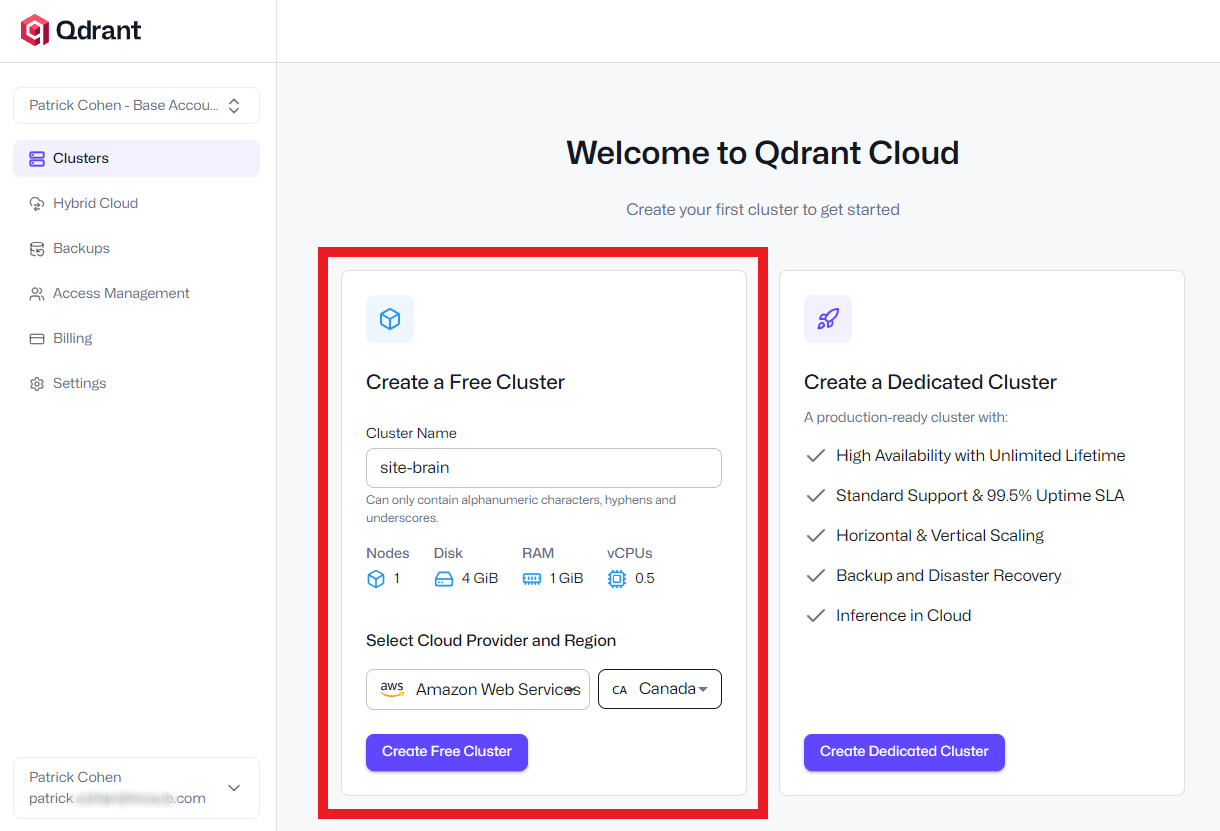
Link to chapter 1Create a cluster at Qdrant Cloud. Choose a region close to the website’s hosting location. The plugin creates the collection automatically, so there is no manual collection setup.
Qdrant Cloud: cloud.qdrant.io
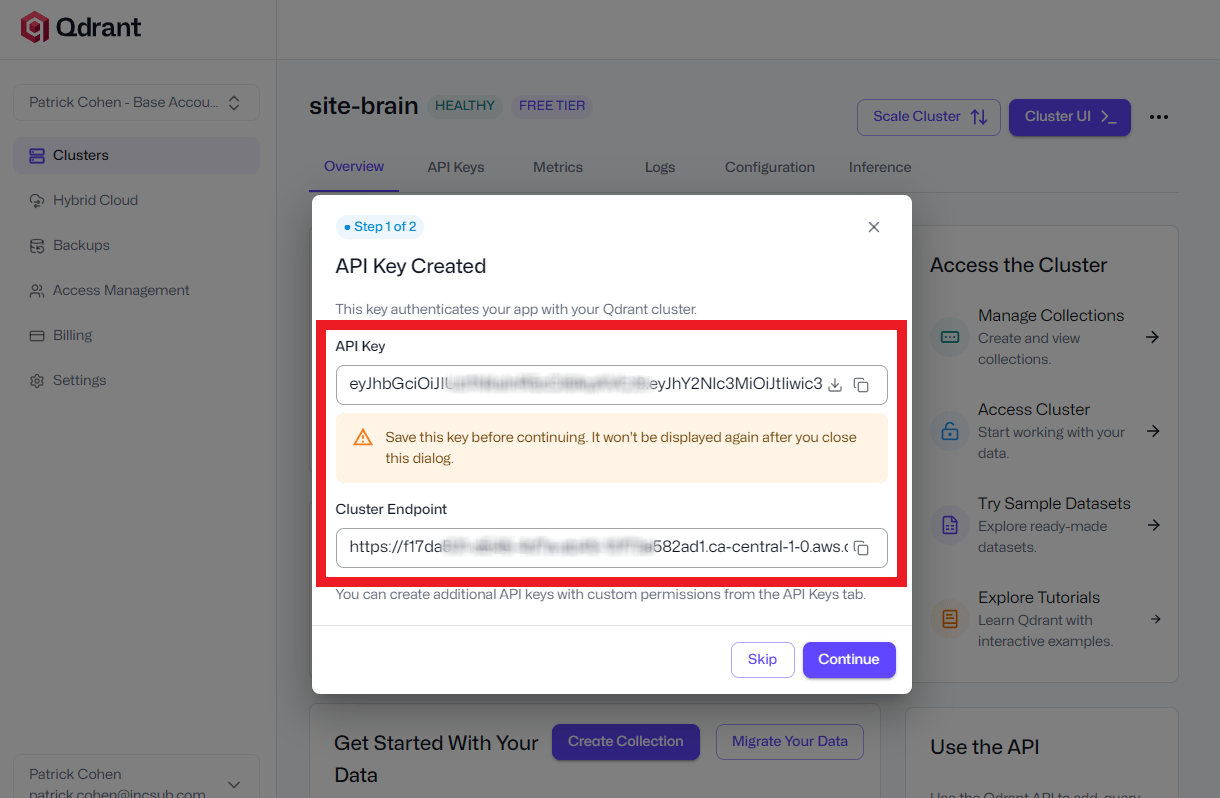
Copy the cluster endpoint and API key. Save the API key somewhere secure because the UI does not show it again.
1.1.2 Create an OpenAI API key
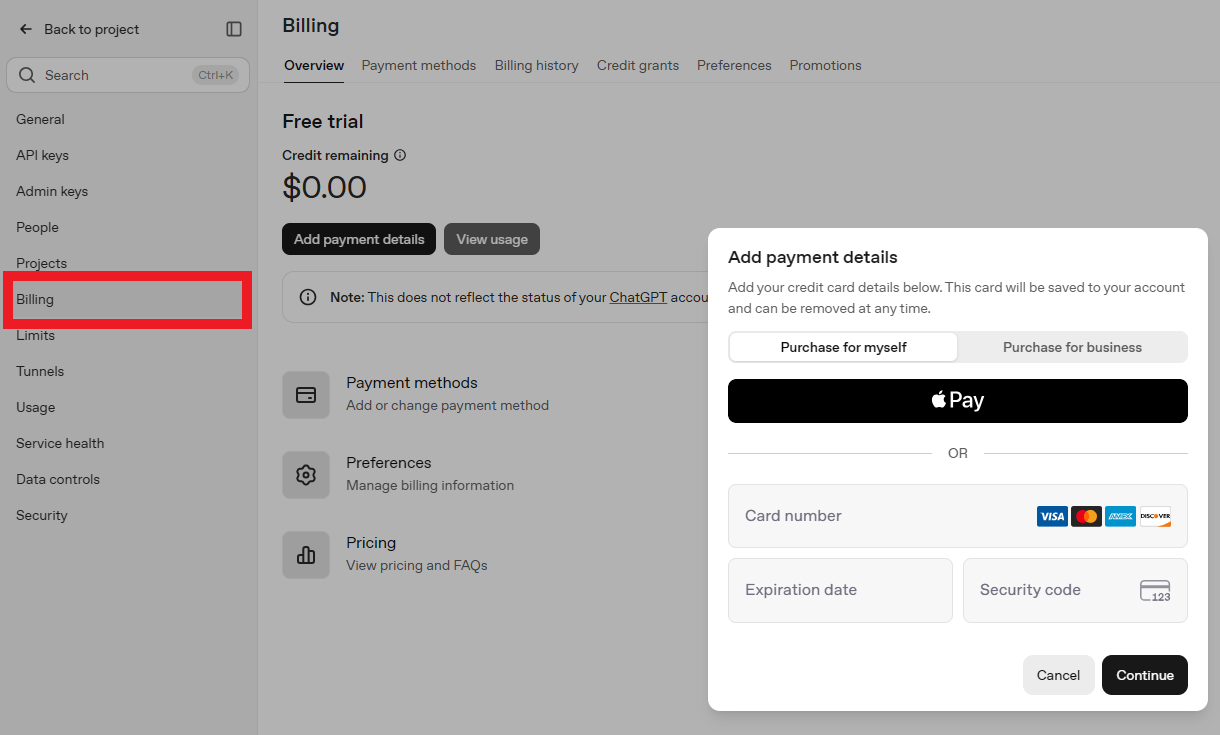
Link to chapter 1Create an API key at the OpenAI platform and add credit. This key is used to create embeddings and search visitor questions. OpenClaw’s own agent answers may appear as separate model usage.
OpenAI API keys: platform.openai.com/api-keys
Guide to creating OpenAI API keys: https://vvqmubev.com/docs/hosting/unlimited/#openai-gpt
1.1.3 Install the plugin
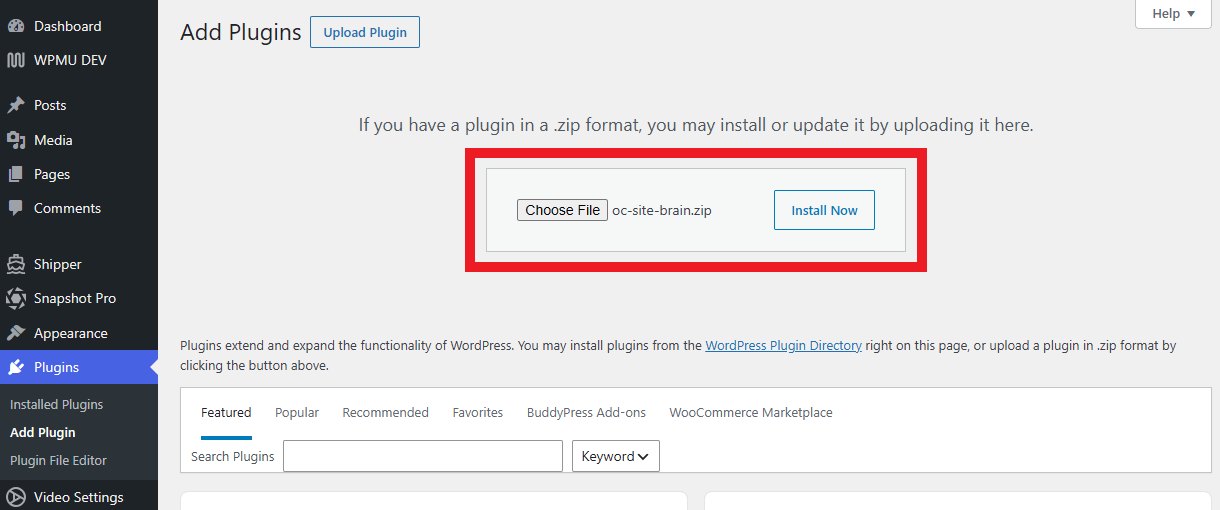
Link to chapter 1First, download the oc-site-brain.zip plugin.
In your WordPress site, go to Plugins > Add Plugin.
- Choose Upload Plugin.
- Select the plugin you just downloaded: oc-site-brain.zip
- Install and activate it.
1.1.4 Connect OpenAI and Qdrant
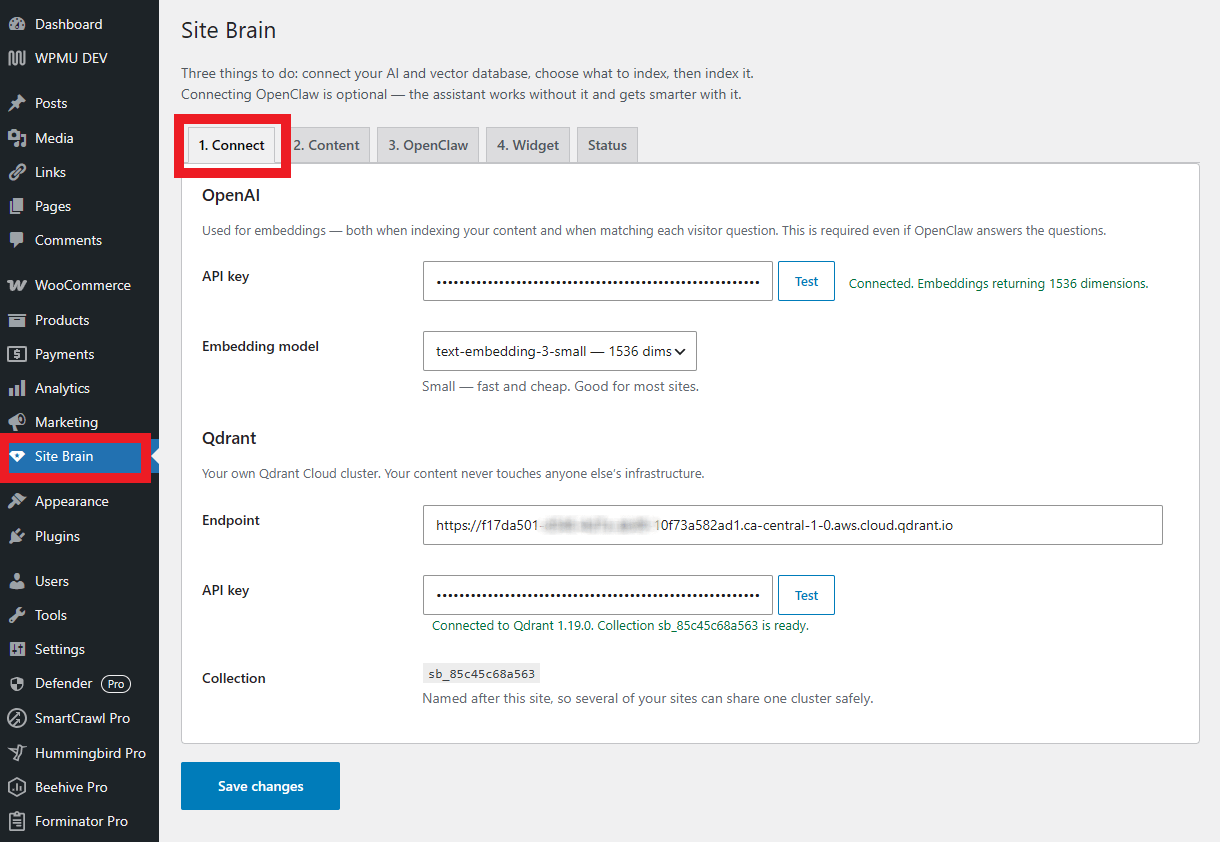
Link to chapter 1Go to Site Brain > Connect.
- Paste the OpenAI key and click Test. Look for a successful embedding response, normally mentioning 1536 dimensions for the small model.
- Paste the Qdrant endpoint and key and click Test. Look for a successful connection and a ready collection.
- Choose
text-embedding-3-smallfor most English sites. Choose the large model only when the additional cost and multilingual retrieval are worth it. - Click Save changes.
Changing the embedding model later requires rebuilding the index because the vectors are not interchangeable.
1.1.5 Index the content
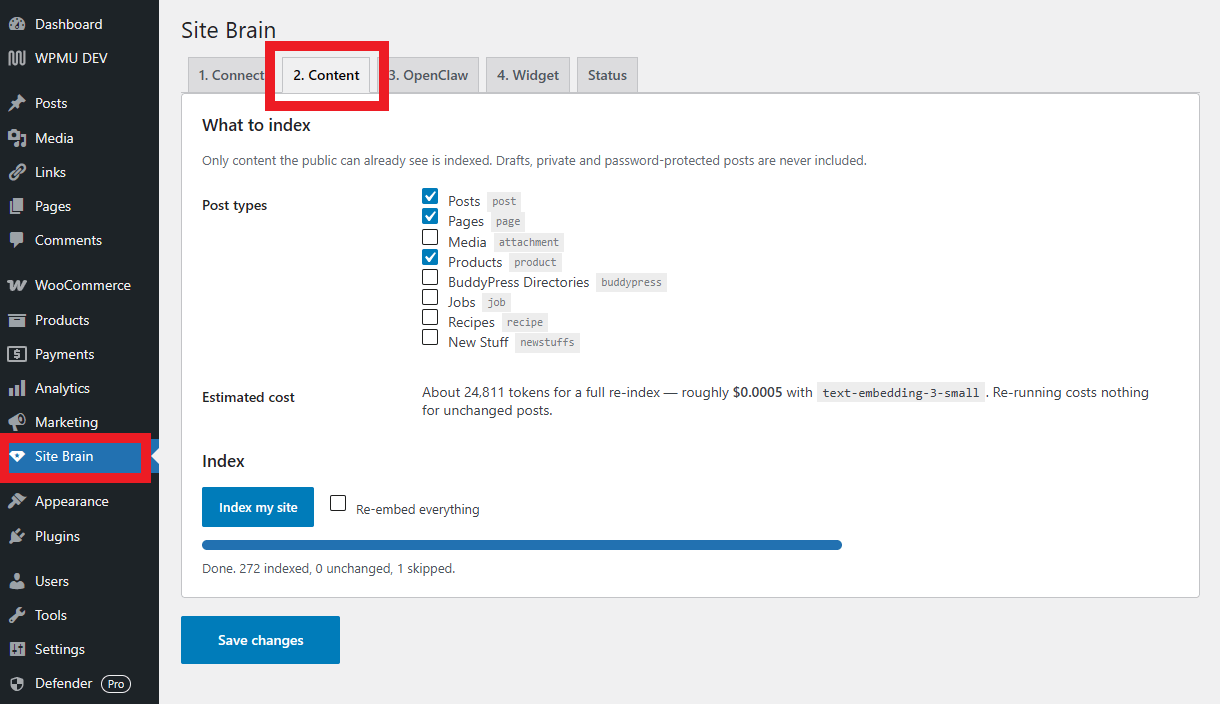
Link to chapter 1Go to Site Brain > Content.
- Select the public post types to include.
- Review the cost estimate.
- Click Index my site and wait for the progress bar to finish. You may need to refresh the page for the button to become active.
Drafts, private posts and password-protected posts are excluded. Once indexed, edited or newly published posts are re-indexed individually. Unchanged posts are skipped.
1.1.6 Connect OpenClaw
Link to chapter 1Go to Site Brain > OpenClaw.
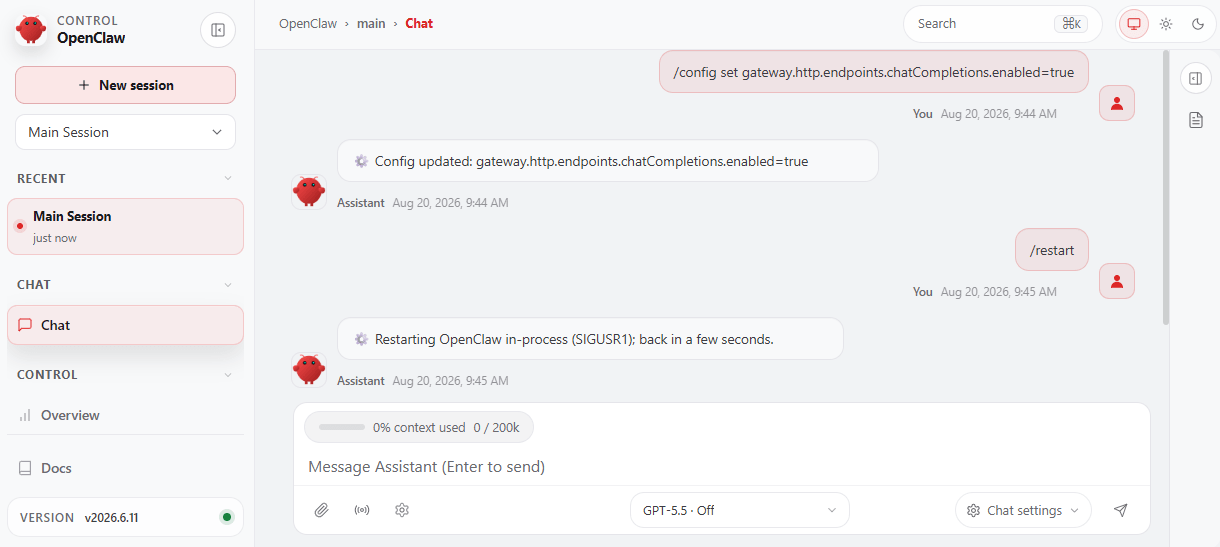
- Open the OpenClaw Control UI and go to Chat.
- From Site Brain > OpenClaw, copy the gateway block at Step 1 and paste it in the OpenClaw chat as one message:
/config set gateway.http.endpoints.chatCompletions.enabled=true - Copy the restart block at Step 2 and paste it in the OpenClaw chat as one message:
/restart
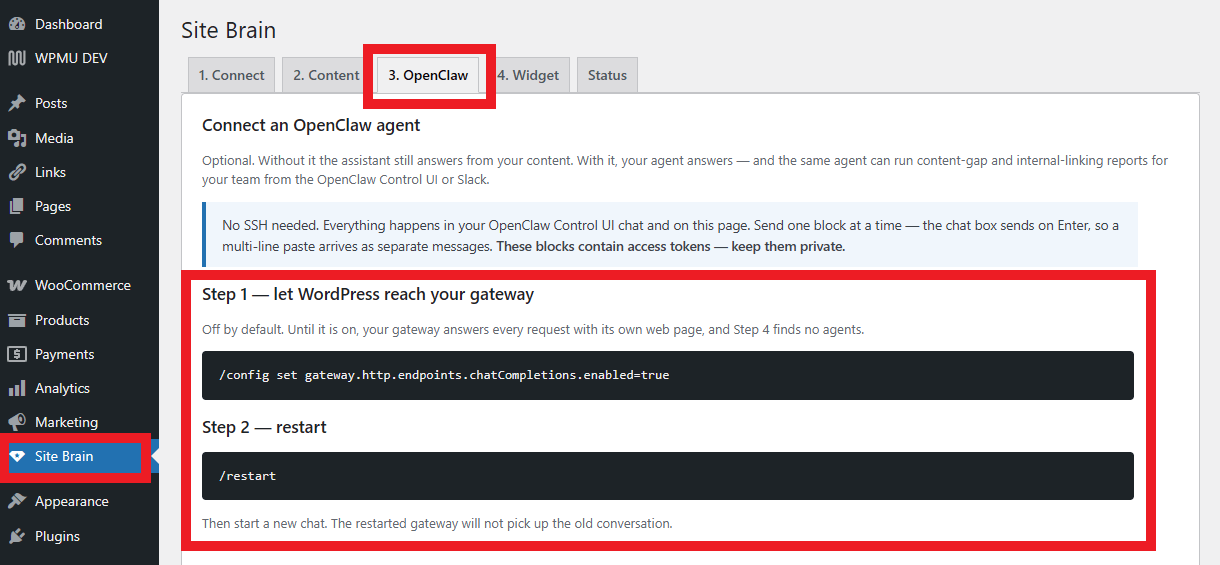
Send one line at a time. After the restart, start a new chat. This enables the chat API that WordPress needs to reach the agent.
1.1.7 Create the visitor and team agents
Link to chapter 1Go back to Site Brain > OpenClaw.
The plugin generates setup blocks with the relevant credentials already filled in.
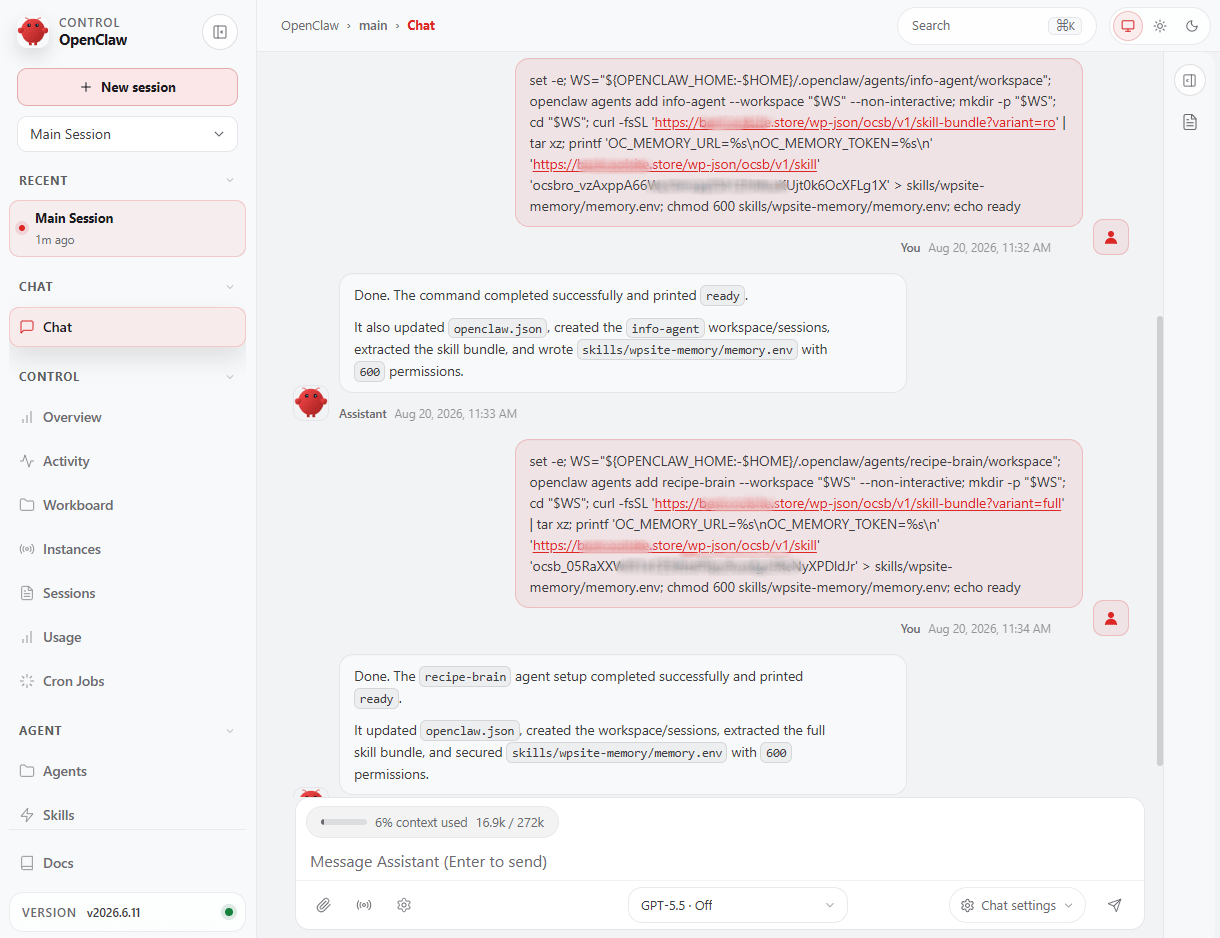
- Copy the visitor-assistant block, and paste it into OpenClaw Chat as a normal message, not as a slash command.
- Wait for a ready confirmation.
- If you want the private content-strategy tools, copy and paste the separate team-agent block as a separate message.
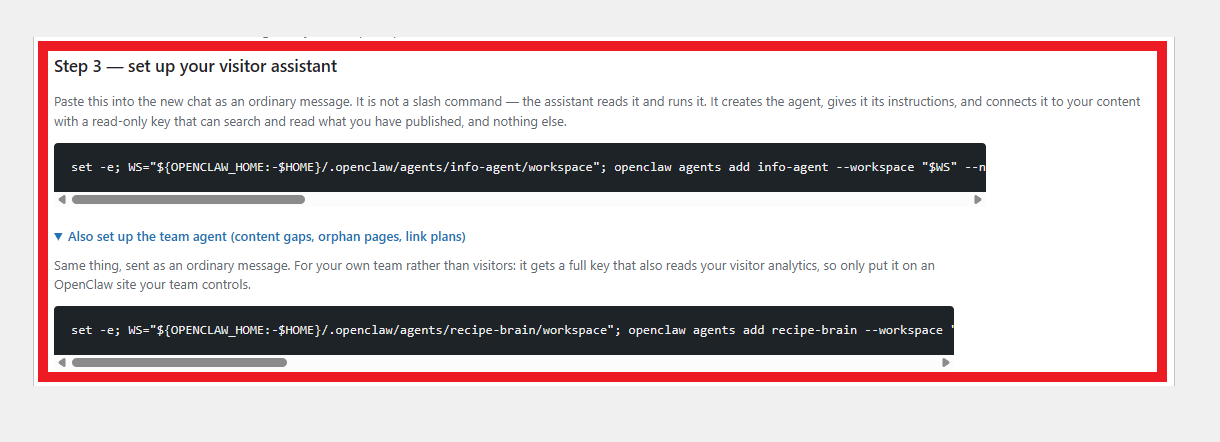
The visitor agent receives a read-only key. The team agent receives a fuller key that can access analytics, reindexing, internal links and orphan-page tools. Keep both blocks private.
1.1.8 Connect WordPress to OpenClaw
Link to chapter 1Still on the OpenClaw tab in your WordPress site, enter the Gateway URL and Gateway token, then click Check it worked.
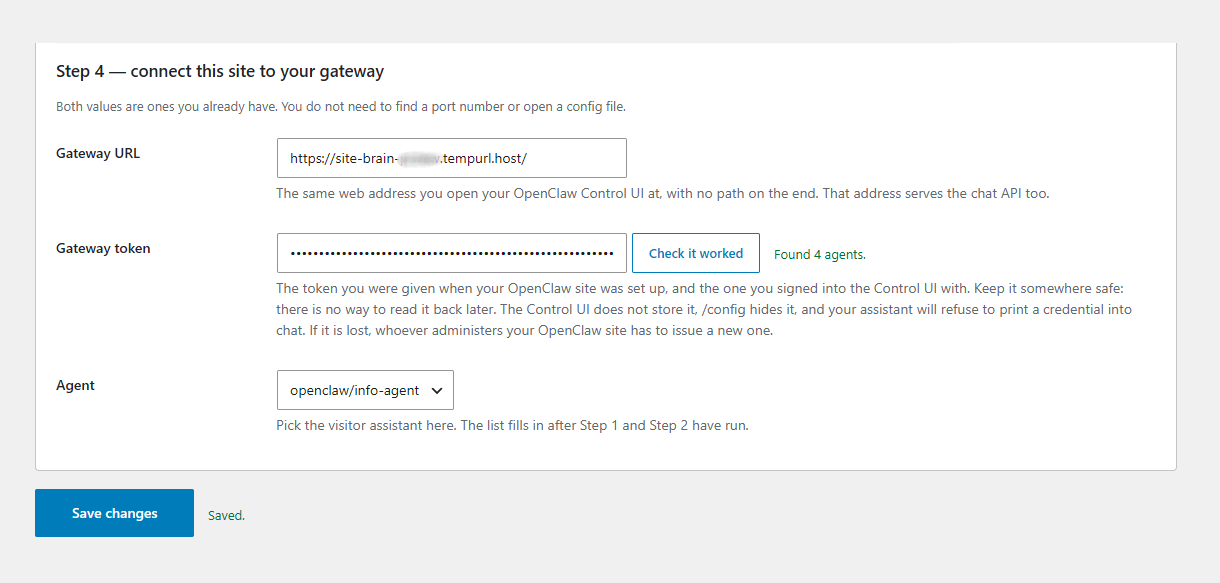
- Use the same web address used to open the OpenClaw Control UI as the Gateway URL, without an extra path or port.
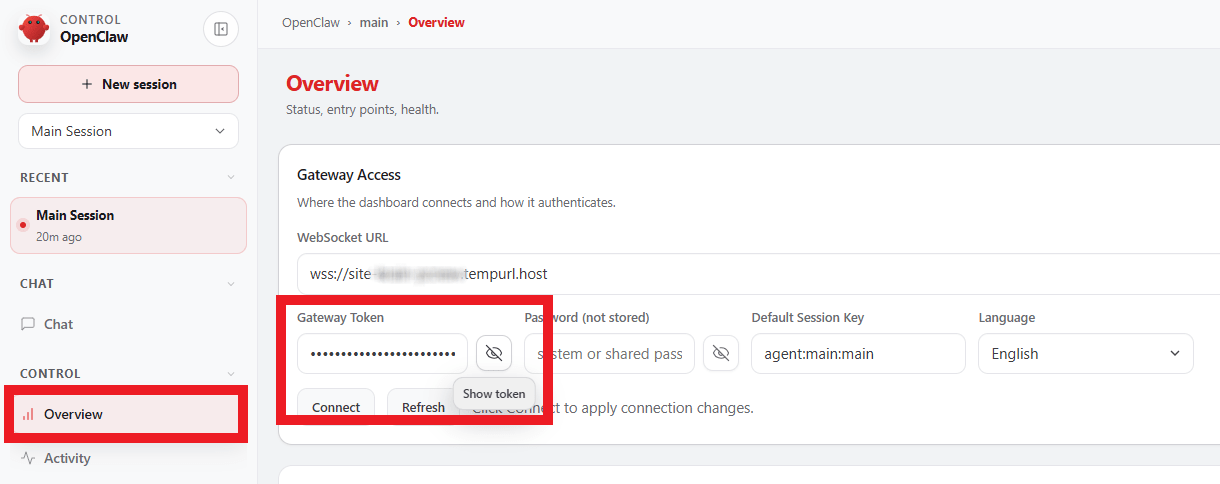
- Use the Gateway token used to sign in to the Control UI.
- Choose the visitor assistant from the agent dropdown. If the dropdown is empty, repeat Step 1; the chat API is probably still disabled.
You can find your Gateway token in your OpenClaw UI under Overview > Gateway Access.
1.1.9 Customize the widget
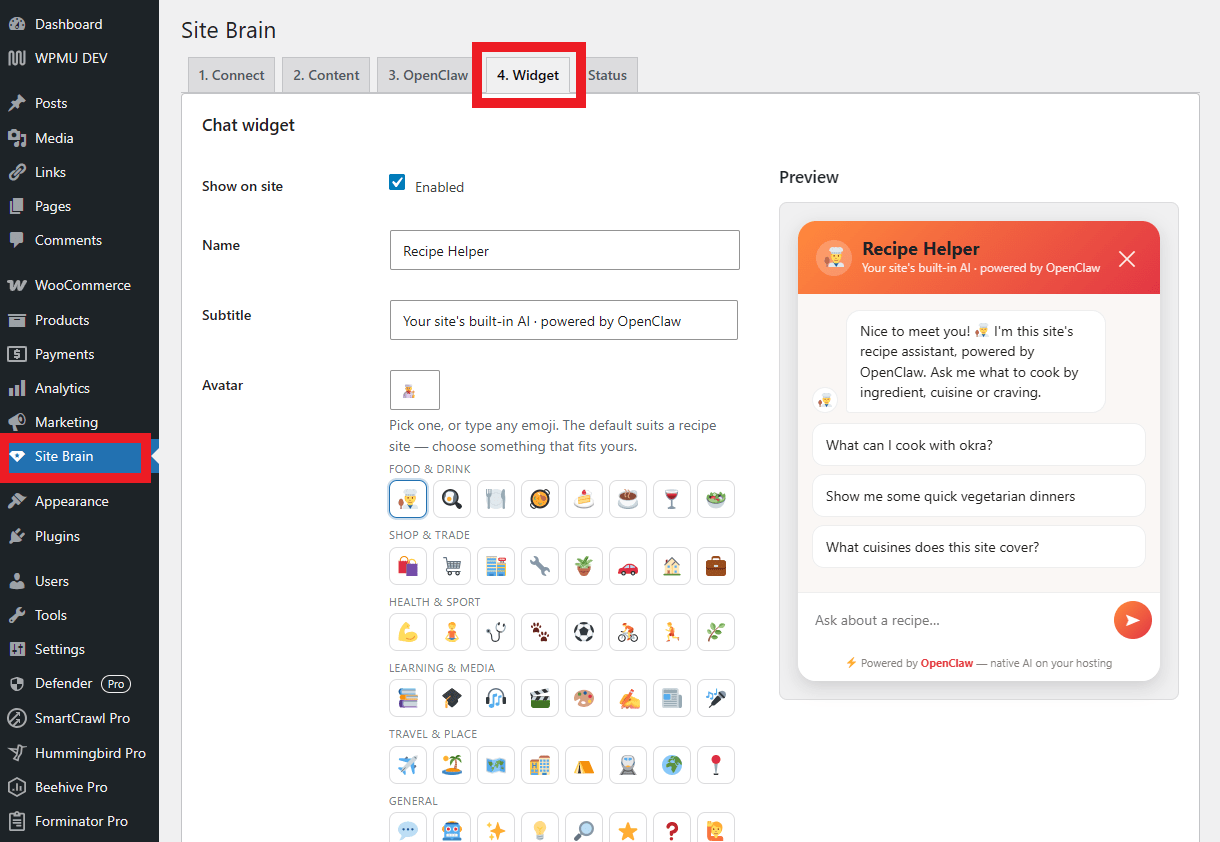
Link to chapter 1Go to Site Brain > Widget.
Change the name, subtitle, avatar, colour, position, opening message, suggestions, placeholder and consent wording. Replace the default recipe language if the site is about another subject.
Click Save changes. Then load the public website and open the chat bubble.
1.1.10 Test the setup
Link to chapter 1Ask the visitor assistant three questions:
- A question clearly covered by an existing post. Confirm that the answer links to the correct real page.
- A question the site does not cover. Confirm that it refuses politely instead of inventing an answer.
- An unrelated question, such as the weather. Confirm that it steers the visitor back to the site’s topic.
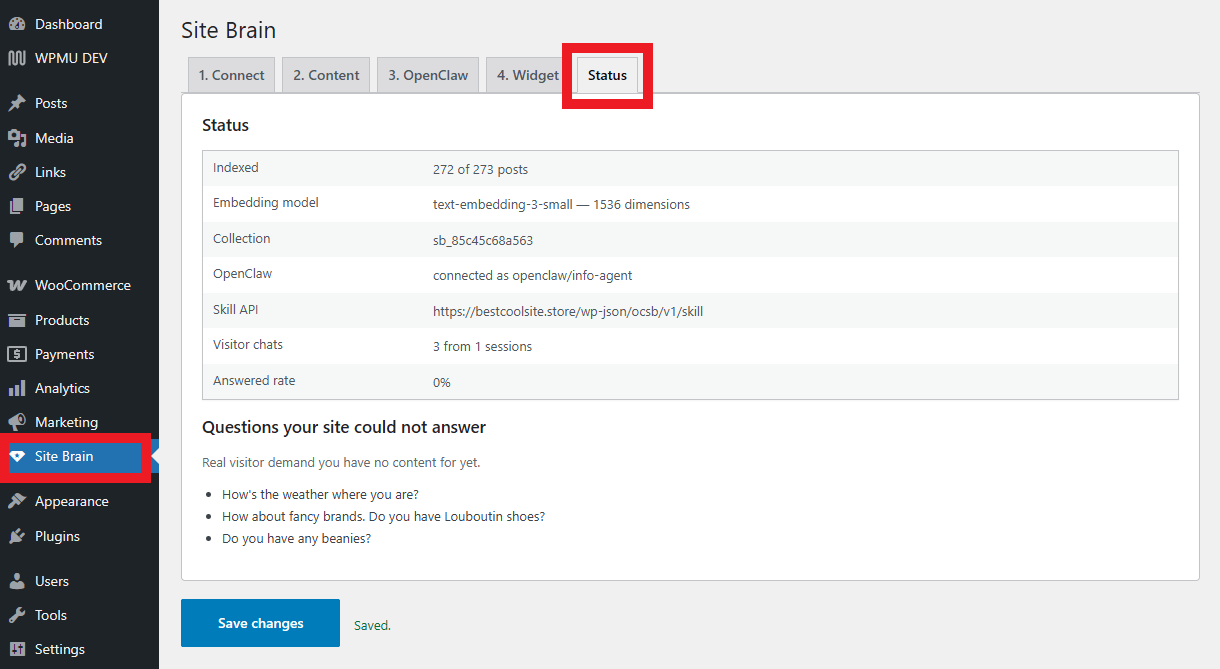
Then, under Site Brain > Status, check for the indexed count, embedding model and unanswered visitor questions.
1.1.11 Test the team agent
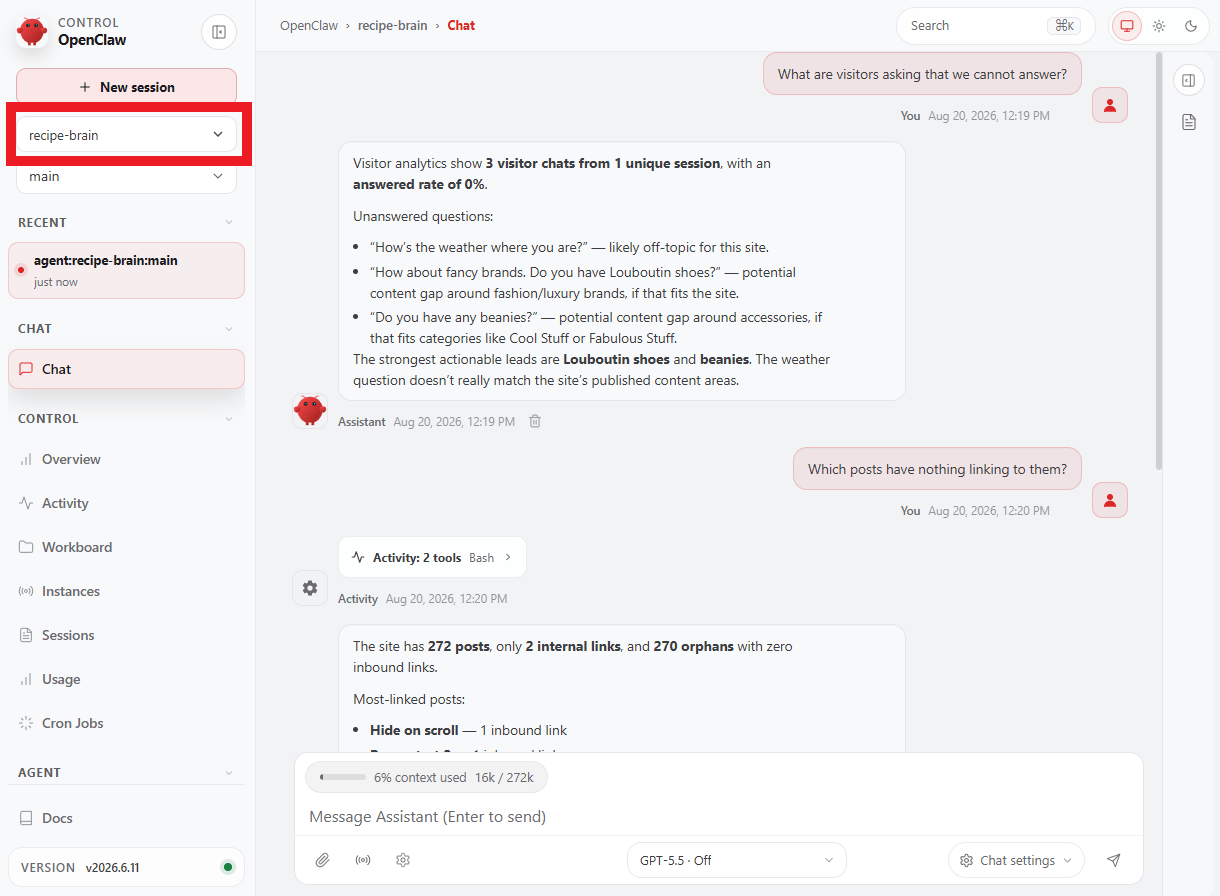
Link to chapter 1In the OpenClaw UI chat, switch to the recipe-brain team agent and try asking the following:
- What are visitors asking that we cannot answer?
- Which posts have nothing linking to them?
- Give me an internal linking plan for [post title].
- Do we have content gaps around [topic]?
The team agent should advise and explain. It does not automatically edit the site or apply its link plan.
1.2 Troubleshooting
Copy chapter anchor to clipboardThe agent dropdown is empty.
Enable the chat API again with the equals sign and restart OpenClaw.
A setup block does nothing.
Copy it again with the Copy button and paste the complete block as one normal chat message.
The gateway token is lost.
Ask the OpenClaw administrator to issue a new token, then update it in WordPress.
The assistant knows nothing.
Check the Status tab. If nothing is indexed, select the correct post types and run indexing again.
Answers take 20–39 seconds.
This can be normal when OpenClaw uses real tool calls. The built-in fallback path is faster, around five seconds, but has less agent judgement.
Indexing fails.
Check OpenAI credit and the Qdrant storage limit, read the returned error, then run indexing again.
The widget has not changed.
Clear WordPress or page-cache layers and reload the site.
1.3 Get support
Copy chapter anchor to clipboardIf you still have questions or need assistance after reading this document, please don’t hesitate to contact our support superheroes using the available options under the Support tab in your Hub or via the Support tab in your WPMU DEV Dashboard.

